क्या आपका PC रिकॉर्डिंग के समय लैग होता है? 2026 में ZD Soft Screen Recorder के साथ स्मूथ 4K रिकॉर्डिंग का अनुभव लें। यहाँ जानें बेस्ट सेटिंग्स, ZD Screen Recorder for PC की पूरी जानकारी और Amazon India के टॉप डील्स। अभी पढ़ें!
अगर आप अपने computer की screen record करके YouTube tutorials, online classes, software demonstrations, gameplay videos या training videos बनाना चाहते हैं, तो आपको एक अच्छे screen recording software की जरूरत होगी।
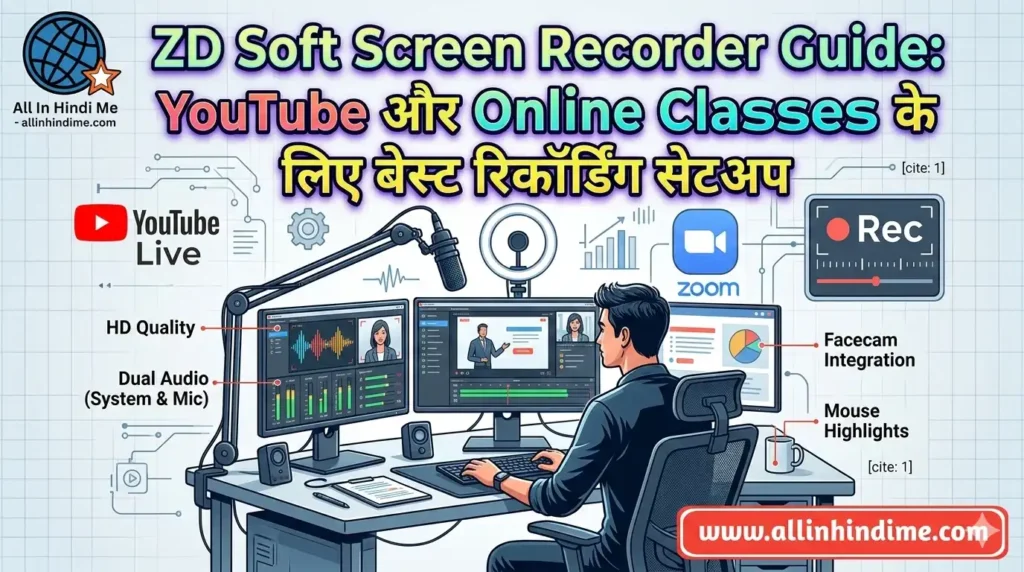
ZD Soft Screen Recorder Windows के लिए बनाया गया screen recording software है। इसकी मदद से आप पूरी desktop screen, किसी specific application window या screen के चुने हुए हिस्से को record कर सकते हैं। इसमें system audio, microphone, webcam overlay और on-screen annotations जैसी सुविधाएं भी मिलती हैं।
इस software का इस्तेमाल educators, content creators, gamers, trainers और technical support professionals कर सकते हैं।
ZD Soft का current product name ZD Screen Recorder है। इसकी official download page पर Version 12.0.9 उपलब्ध है।
इस Complete Guide में हम जानेंगे कि ZD Screen Recorder क्या है, इसमें कौन-कौन से features मिलते हैं, इसका free trial कैसे काम करता है, lifetime license की कीमत कितनी है और इसे चलाने के लिए किस तरह का computer चाहिए।
ZD Screen Recorder एक Windows-based screen recording application है। यह screen, application window, selected region, system audio, microphone, webcam और gameplay capture कर सकता है। Official website पर 15-day trial और $39 से शुरू होने वाला one-time lifetime license उपलब्ध है।
Table of Contents
ZD Soft Screen Recorder क्या है?
ZD Soft Screen Recorder एक screen capture और video recording software है, जिसे ZD Soft ने Windows users के लिए विकसित किया है।
इसका उपयोग computer की screen पर होने वाली गतिविधियों को video के रूप में record करने के लिए किया जाता है।
उदाहरण के लिए:
Computer tutorials बनाना।
Software demonstrations record करना।
Online classes और training videos बनाना।
Gameplay videos capture करना।
Webcam के साथ screen recording करना।
Microphone से voice-over record करना।
System audio और microphone को साथ record करना।
Technical support और troubleshooting videos बनाना।
ZD Screen Recorder का उद्देश्य recording workflow को आसान बनाना है, ताकि user capture area चुनकर audio settings configure करे और recording शुरू कर सके।
ZD Screen Recorder 12 के मुख्य Features
1. Full Screen Recording
ZD Screen Recorder में आप अपने पूरे desktop को record कर सकते हैं।
यह सुविधा उन लोगों के लिए उपयोगी है जो computer पर पूरा workflow दिखाना चाहते हैं।
उदाहरण:
Software tutorials।
Computer training।
Presentation demonstrations।
Online lessons।
Desktop walkthroughs।
Full screen recording में आपके monitor पर दिखाई देने वाली पूरी activity capture की जा सकती है।
2. Selected Region Recording
यदि आपको पूरी screen record नहीं करनी है, तो आप केवल किसी specific हिस्से को select कर सकते हैं।
इसका उपयोग इन कामों में हो सकता है:
किसी software का छोटा section दिखाना।
Browser window का specific area record करना।
Tutorial में जरूरी controls पर focus करना।
Unnecessary desktop content को recording से बाहर रखना।
इससे final video ज्यादा focused और साफ दिखाई दे सकता है।
3. Application Window Recording
ZD Screen Recorder किसी specific application window को capture करने का विकल्प भी देता है।
उदाहरण के लिए, आप केवल:
Web browser।
Microsoft Excel।
Photoshop।
Video editing software।
Presentation application।
जैसी window record कर सकते हैं।
यह feature software tutorials और product demonstrations के लिए उपयोगी है।
4. System Audio और Microphone Recording
Screen recording के साथ audio capture करना बहुत जरूरी होता है।
ZD Screen Recorder system audio और microphone input को record कर सकता है।
इससे आप एक ही recording में:
Computer से चलने वाली आवाज।
Microphone से अपनी commentary।
Software tutorial की explanation।
Supported media playback।
जैसी चीजें capture कर सकते हैं।
यदि आप YouTube tutorial बना रहे हैं, तो इससे screen और voice-over को एक साथ record करना आसान हो सकता है।
5. Webcam Overlay Recording
ZD Screen Recorder में webcam recording और overlay का विकल्प मिलता है।
इसकी मदद से आप screen के साथ अपना camera footage भी जोड़ सकते हैं।
यह इन प्रकार के videos के लिए उपयोगी है:
Online teaching।
Software demonstrations।
Reaction videos।
Training videos।
Presentation recordings।
Gameplay commentary।
आप screen recording के साथ अपना चेहरा दिखाकर video को अधिक personal और engaging बना सकते हैं।
6. Live Annotation और Drawing Tools
ZD Screen Recorder में live drawing और annotation tools उपलब्ध हैं।
इनकी मदद से recording के दौरान screen पर महत्वपूर्ण हिस्सों को highlight किया जा सकता है।
यह feature teachers और software trainers के लिए काफी उपयोगी है।
7. Mouse Highlight और Zoom
Software tutorial में कई बार viewers को यह समझने में कठिनाई होती है कि mouse cursor कहां जा रहा है।
ZD Screen Recorder में cursor emphasis और zoom जैसी सुविधाएं हैं।
इनकी मदद से आप:
Mouse movement को स्पष्ट दिखा सकते हैं।
Clicks पर ध्यान आकर्षित कर सकते हैं।
किसी छोटे interface element को zoom करके दिखा सकते हैं।
Tutorial के महत्वपूर्ण हिस्सों को अधिक स्पष्ट बना सकते हैं।
इससे viewers को step-by-step instructions समझने में मदद मिल सकती है।
8. Gameplay Recording
ZD Screen Recorder में game-optimized capture की सुविधा दी गई है।
इसका उद्देश्य gameplay recording के दौरान image quality, frame rate और system load के बीच संतुलन बनाए रखना है।
इसका इस्तेमाल:
PC gameplay videos।
Game tutorials।
Gaming demonstrations।
Walkthrough recordings।
Gaming commentary।
के लिए किया जा सकता है।
हालांकि gaming performance आपके processor, graphics card, RAM और game settings पर निर्भर करेगी।
9. Scheduled Recording
ZD Screen Recorder में scheduled और long-running recording workflow की सुविधा उपलब्ध है।
इसका उपयोग तब किया जा सकता है जब आप किसी recording को पहले से निर्धारित समय पर शुरू करना चाहते हैं।
उदाहरण:
Scheduled presentations।
Authorized webinars।
Training sessions।
Long-running demonstrations।
किसी भी meeting या online session को record करने से पहले संबंधित लोगों की अनुमति और platform के नियमों का पालन करें।
10. Live Streaming और Presentations
ZD Screen Recorder की official product information में live streaming और presentation workflows का भी उल्लेख है।
इससे screen capture controls को streaming और demonstration जैसे workflows में इस्तेमाल किया जा सकता है।
यदि आपका मुख्य उद्देश्य professional live broadcasting है, तो खरीदने से पहले इसकी current streaming compatibility और required settings को verify करना चाहिए।
11. Video Output और Recording Workflow
Recording पूरी होने के बाद आप अपने captured video को save करके review, edit या share कर सकते हैं।
ZD Screen Recorder का मुख्य उद्देश्य ready-to-use local video तैयार करना है।
Final video का format और quality आपकी selected recording settings और output configuration पर निर्भर करेगी।
ZD Screen Recorder Free Trial vs Paid License
ZD Screen Recorder खरीदने से पहले trial और paid license के बीच अंतर समझना जरूरी है।
1. Free Trial
ZD Soft की official information के अनुसार trial में:
15 दिनों तक trial access।
प्रति recording अधिकतम 15 मिनट।
Output video पर ZD Soft watermark।
Recording features को test करने का विकल्प।
मिलता है।
यह trial software की performance और recording quality जांचने के लिए उपयोगी है।
2. Paid Lifetime License
Paid license में:
Lifetime license।
Watermark-free output।
48+ घंटे तक recording की क्षमता।
Commercial use।
Free technical support।
शामिल हैं।
यह उन creators और professionals के लिए उपयोगी हो सकता है जिन्हें नियमित रूप से लंबी और watermark-free recordings बनानी होती हैं।
ZD Screen Recorder Price – कितनी कीमत है?
ZD Soft की official purchase page पर अलग-अलग computer संख्या के लिए lifetime license plans दिए गए हैं।
License
Listed Price
Payment Type
1 PC
$39
One-time
2 PCs
$58
One-time
5 PCs
$136
One-time
10 PCs
$253
One-time
20 PCs
$468
One-time
50 PCs
$1,072
One-time
100 PCs
$1,950
One-time
ये official website पर दिखाई गई prices हैं। Promotional discounts और final checkout amount बदल सकते हैं।
भारत में ZD Screen Recorder की कीमत
ZD Soft की website पर prices USD में दिखाई जाती हैं।
भारत में final payment राशि इन बातों पर निर्भर करेगी:
Current USD-INR exchange rate।
Applicable taxes।
Payment provider charges।
Purchase के समय लागू discount।
इसलिए खरीदने से पहले official checkout page पर final amount जरूर देखें।
Amazon पर ZD Screen Recorder देखें
Amazon India पर इस software के लिए relevant listings खोजने के लिए नीचे दिए गए affiliate search links इस्तेमाल कर सकते हैं।
ZD Soft की official download page पर Version 12.0.9 के लिए निम्नलिखित system requirements दी गई हैं।
Component
Official Requirement
Operating System
Windows 7 / 8 / 8.1 / 10 / 11
Processor
2.0 GHz या faster
RAM
2GB या अधिक
Recommended Version
64-bit
Installer Size
लगभग 14.9 MB
ये official download page पर दिए गए minimum hardware details हैं। बेहतर recording quality और gameplay capture के लिए ज्यादा powerful computer उपयोगी होगा।
आपको 64-bit और 32-bit installer के विकल्प मिल सकते हैं।
अधिकांश modern Windows computers के लिए 64-bit installer recommended है।
Step 4: Installer Download करें
EXE या MSI installer चुनें। सामान्य users के लिए EXE installer उपयोगी हो सकता है, जबकि MSI enterprise deployment के लिए दिया गया है।
Step 5: Installation पूरा करें
Downloaded file को run करें और installation wizard के निर्देश follow करें।
Step 6: Recording Mode चुनें
Software खोलकर full screen, application window या selected region में से अपनी जरूरत का capture mode चुनें।
Step 7: Audio और Webcam Configure करें
जरूरत के अनुसार system sound, microphone और webcam enable करें।
Step 8: Test Recording करें
पहले 20–30 सेकंड की छोटी recording करें। इससे audio, video और output quality जांचने में मदद मिलेगी।
Step 9: Trial या License Activate करें
यदि आप paid version खरीदते हैं, तो official license instructions के अनुसार activation पूरा करें।
ZD Screen Recorder से Tutorial Video कैसे बनाएं?
यदि आप YouTube या अपनी website के लिए software tutorial बनाना चाहते हैं, तो यह workflow उपयोगी हो सकता है।
ZD Screen Recorder खोलें।
Full Screen या Application Window capture चुनें।
Microphone input select करें।
System audio जरूरत के अनुसार enable करें।
Webcam overlay लगाएं, यदि जरूरी हो।
Cursor highlighting और annotation tools configure करें।
Recording शुरू करें।
Software का demonstration करें।
Recording रोकें और video save करें।
Final video को review करें और जरूरत के अनुसार editing करें।
Pro Tip: Tutorial शुरू करने से पहले unnecessary desktop notifications बंद कर दें। इससे recording में निजी messages या unrelated pop-ups दिखाई देने का जोखिम कम होगा।
ZD Screen Recorder के साथ कौन-सी Accessories खरीदें?
Screen recording का अनुभव बेहतर बनाने के लिए कुछ accessories उपयोगी हो सकती हैं।
1. USB Microphone
Tutorial और commentary recording के लिए अच्छा microphone महत्वपूर्ण है।
USB microphone से आप अपनी आवाज को computer में record कर सकते हैं।
OBS Studio free और open-source software है, जिसका उपयोग recording और live streaming दोनों के लिए किया जा सकता है।
ZD Screen Recorder एक paid lifetime license विकल्प भी देता है और guided screen capture workflow पर ध्यान देता है।
ZD Screen Recorder vs Camtasia
Camtasia recording के साथ integrated video editing workflow प्रदान करता है। ZD Screen Recorder मुख्य रूप से screen capture पर केंद्रित है।
यदि आपको advanced editing, titles और transitions की जरूरत है, तो Camtasia जैसे editing-focused tools की तुलना करना उपयोगी होगा।
ZD Screen Recorder vs Bandicam
Bandicam भी Windows के लिए screen और gameplay recording software है। दोनों के trial, license, recording quality और feature set की तुलना करके सही विकल्प चुन सकते हैं।
ZD Screen Recorder Windows users के लिए एक उपयोगी screen recording tool है।
इसमें full screen capture, selected region recording, system audio, microphone, webcam overlay, live annotations और gameplay capture जैसी सुविधाएं मिलती हैं।
यदि आप YouTube tutorials, online lessons या software demonstrations बनाते हैं, तो यह software आपके workflow में उपयोगी हो सकता है।
इसका 15-day trial आपको software test करने का मौका देता है। यदि आपको watermark-free output और लंबी recordings चाहिए, तो paid lifetime license पर विचार कर सकते हैं।
हमारी Recommendation:
पहले 15-day trial इस्तेमाल करके देखें।
अपने computer पर 20–30 सेकंड की test recording करें।
Audio और video quality जांचें।
यदि नियमित recording करते हैं, तो 1-PC lifetime license पर विचार करें।
Advanced video editing के लिए अलग editing software इस्तेमाल करें।
ZD Soft Screen Recorder एक Windows screen recording software है। इसका उपयोग desktop, application window, selected region, microphone, system audio और webcam capture करने के लिए किया जाता है।
हां। Official purchase page पर one-time payment के साथ lifetime license दिया गया है। इसमें watermark-free output और 48+ घंटे तक recording की सुविधा शामिल है।
Affiliate Disclosure: इस लेख में Amazon Affiliate Links शामिल हैं। यदि आप इन Links के माध्यम से कोई Product खरीदते हैं, तो AllInHindiMe.com को बिना किसी अतिरिक्त लागत के कमीशन मिल सकता है। इससे हमारी वेबसाइट को सहयोग मिलता है। हम पाठकों को उपयोगी और प्रासंगिक Products की जानकारी देने का प्रयास करते हैं।
-:नोट:-
ऐसे ही सभी जानकारी हम सबसे पहले अपने इस वेबसाइट https://allinhindime.com के माध्यम से देते हैं तो आप हमारे वेबसाइट को फॉलो करना ना भूलें ।
अगर यह आर्टिकल पसंद आया है तो इसे Like और share जरूर करें ।