Nero Burn Express का Hindi Guide पढ़ें। जानें CD, DVD और Blu-ray burning, ISO files, disc copying, audio CD ripping, system requirements और खरीदने के विकल्प।
आज भी कई लोग अपने important documents, photos, music और videos को CD या DVD में सुरक्षित रखना पसंद करते हैं। इसके अलावा पुराने music collections, family videos और data archives को optical discs पर store करने की जरूरत भी पड़ती है। ऐसे कामों के लिए CD/DVD burning software उपयोगी होता है।
Nero Burn Express इसी तरह का disc burning software है, जिसकी मदद से आप data discs, audio CDs और video files को supported optical media पर burn कर सकते हैं। इसमें guided workflow दिया जाता है, जिससे सामान्य users भी कुछ आसान steps में disc burning का काम कर सकते हैं।
लेकिन क्या Nero Burn Express और Nero Burning ROM एक ही software हैं? क्या इससे ISO files burn की जा सकती हैं? क्या Windows 11 पर यह चलता है? और क्या इसे खरीदना जरूरी है?
इस Complete Guide में हम Nero Burn Express के features, उपयोग, system requirements, खरीदने के विकल्प और इसके alternatives के बारे में जानेंगे।
Nero Burn Express एक Windows-based optical disc burning application है। इसका उपयोग compatible CD, DVD और Blu-ray drives के जरिए data, music और supported video disc content burn या copy करने के लिए किया जाता है। Nero की support जानकारी में retail version Nero Burn Express 5 और Microsoft Store वाला Nero Express विकल्प बताए गए हैं। खरीदने से पहले exact product version और compatibility जरूर जांचें।
Table of Contents
Nero Burn Express क्या है?
Nero Burn Express एक disc burning software है, जिसे CD, DVD और Blu-ray जैसे optical media पर data लिखने के लिए इस्तेमाल किया जाता है।
इसका मुख्य उद्देश्य disc burning की प्रक्रिया को आसान बनाना है। इसमें guided interface मिलता है, जिसमें user को अपनी जरूरत के अनुसार burning task चुनना होता है।
उदाहरण के लिए:
Computer files को DVD में burn करना।
Photos और documents का disc backup बनाना।
Audio CD बनाना।
Existing discs की supported copies तैयार करना।
ISO या disc image files को compatible disc पर लिखना।
Audio CD से music files extract करना, जहां supported हो।
Nero Express का workflow सामान्य users के लिए बनाया गया है। यदि आपको अधिक advanced burning controls चाहिए, तो Nero Burning ROM पर विचार किया जा सकता है।
Nero Burn Express और Nero Burning ROM में क्या अंतर है?
Nero Express और Nero Burning ROM के नाम मिलते-जुलते हैं, लेकिन दोनों का workflow अलग है।
Nero Express: इसका interface guided और wizard-based होता है। यह सामान्य disc burning tasks को कम steps में पूरा करने के लिए उपयोगी है।
Nero Burning ROM: इसमें advanced compilation settings और अधिक detailed controls मिलते हैं। यह उन users के लिए बेहतर हो सकता है जिन्हें disc burning पर अधिक नियंत्रण चाहिए।
Feature
Nero Burn Express
Nero Burning ROM
Interface
Guided Wizard
Advanced Interface
सामान्य Data Disc
उपलब्ध
उपलब्ध
Audio CD
Supported version में
उपलब्ध
Disc Copying
Supported tasks
Advanced options
ISO/Image Burning
Version-dependent
उपलब्ध
Advanced Settings
सीमित
अधिक controls
Best For
सामान्य users
Advanced users
ध्यान दें कि features product edition और version के अनुसार बदल सकते हैं। खरीदने से पहले official product description जांचें।
Nero Burn Express के मुख्य Features
1. CD, DVD और Blu-ray Burning
Nero Burn Express का मुख्य काम optical discs पर data burn करना है।
आप compatible disc writer और blank recordable disc की मदद से files को disc में लिख सकते हैं।
इसके उपयोग:
Documents का backup।
Family photos का archive।
Music files store करना।
Videos और project files save करना।
Data sharing के लिए discs बनाना।
CD, DVD और Blu-ray के लिए अलग-अलग प्रकार की blank discs और compatible drives की जरूरत होती है।
2. Data Disc Creation
यदि आप अपने computer की जरूरी files को physical disc में सुरक्षित रखना चाहते हैं, तो Data Disc विकल्प उपयोगी हो सकता है।
इसमें आप:
Documents
PDF Files
Photos
Videos
Music Files
Folders और अन्य data
चुनकर disc compilation तैयार कर सकते हैं।
Burning से पहले disc की available capacity जांचना जरूरी है।
3. Audio CD Creation
Nero Express के supported editions में Audio CD creation की सुविधा मिल सकती है।
इसकी मदद से आप compatible audio files से audio disc तैयार कर सकते हैं।
यह पुराने CD players और compatible car stereos के लिए उपयोगी हो सकता है।
ध्यान रखें कि सामान्य MP3 data disc और standard Audio CD अलग-अलग formats हैं। किसी पुराने CD player में कौन-सा format चलेगा, यह उसके supported formats पर निर्भर करता है।
Nero Express का उपयोग supported optical discs की copies तैयार करने के लिए किया जा सकता है।
इसके लिए source disc और compatible writer की जरूरत हो सकती है।
Disc copying का उपयोग:
अपने personal data की backup copy बनाने में।
Family photos और videos की अतिरिक्त copy रखने में।
अपने बनाए हुए project discs को duplicate करने में।
Copyright-protected commercial discs की copying पर कानूनी और technical restrictions लागू हो सकती हैं। केवल उन्हीं discs की copying करें जिनके लिए आपके पास उचित अधिकार हों।
5. ISO और Disc Image Burning
ISO एक disc image file format है, जिसमें disc का data एक single file के रूप में store होता है।
यदि आपके पास कोई legitimate ISO image है, तो compatible burning software की मदद से उसे optical disc पर लिखा जा सकता है।
उदाहरण:
Operating system installation media।
Recovery discs।
Software installation images।
Personal backup images।
ISO file को सामान्य data file की तरह disc पर copy करने और ISO image के रूप में burn करने में अंतर होता है। सही image-burning option चुनना जरूरी है।
6. Audio CD Ripping
Supported Nero Express products में audio CD से tracks को computer पर extract करने की सुविधा मिल सकती है।
इस प्रक्रिया को CD ripping कहते हैं।
आप supported formats जैसे MP3 या अन्य उपलब्ध audio formats में music files save कर सकते हैं।
यह सुविधा पुराने music collections को digital library में बदलने में उपयोगी हो सकती है।
Audio ripping करते समय अपने देश के copyright laws और personal-use conditions का पालन करें।
7. SecurDisc और Data Protection
कुछ Nero products और editions में SecurDisc technology शामिल होती है।
इसका उद्देश्य optical disc पर store किए गए data की सुरक्षा और integrity को बेहतर बनाना है।
Supported features में शामिल हो सकते हैं:
Password protection।
Encryption।
Digital signatures।
Data integrity checks।
Error management।
सभी SecurDisc features हर Nero Express edition में उपलब्ध हों, यह जरूरी नहीं है। खरीदने से पहले exact version की feature list जांचें।
8. Disc Labels और Cover Design
Nero ecosystem में disc labels और cover design के लिए Nero CoverDesigner जैसे tools उपलब्ध रहे हैं।
इनकी मदद से आप:
CD/DVD labels बना सकते हैं।
Jewel case cover तैयार कर सकते हैं।
Disc booklets design कर सकते हैं।
Personal photo और text जोड़ सकते हैं।
ध्यान दें कि CoverDesigner का included होना आपके खरीदे गए Nero package पर निर्भर करता है।
Nero Burn Express किस काम के लिए उपयोगी है?
उपयोग
क्या कर सकते हैं?
Data Backup
Documents और photos को disc पर store करना
Music
Supported Audio CDs बनाना
Video Storage
Video files को data disc पर burn करना
ISO Files
Compatible disc image burn करना
Disc Copy
Supported discs की copy बनाना
Archiving
Personal files को optical media पर सुरक्षित रखना
Audio Ripping
Supported audio CDs से tracks extract करना
महत्वपूर्ण: किसी MP4 video file को सीधे data DVD पर burn करने से वह जरूरी नहीं कि सामान्य DVD player में चले। Standard DVD-Video बनाने के लिए अलग DVD authoring process की जरूरत पड़ सकती है। Nero Burn Express को full video authoring software न समझें।
Nero Burn Express 5 और Microsoft Store Nero Express
Nero की official support जानकारी के अनुसार Nero Express के latest versions दो formats में उपलब्ध बताए गए हैं:
Microsoft Store में DVD, CD and Blu-ray Burner – Nero Express।
Retail version के रूप में Nero Burn Express 5।
इसलिए खरीदने से पहले product name और version ध्यान से जांचें।
Nero Burn Express 5
यह retail version है। इसकी availability और price seller तथा region के अनुसार अलग हो सकती है।
Microsoft Store Nero Express
Microsoft Store वाला विकल्प Windows पर disc burning के लिए उपलब्ध है। खरीदने या install करने से पहले अपने Windows version, app listing और included features की जांच करें।
Nero Burn Express 5 की भारत में कोई स्थायी और universally applicable official price इस guide में निर्धारित नहीं की गई है। Retail sellers और Microsoft Store की pricing अलग हो सकती है।
खरीदने से पहले इन विकल्पों की तुलना करें:
Option
क्या जांचें?
Nero Burn Express 5 Retail
Version, license type और seller
Microsoft Store Nero Express
Current listing और included features
Nero Burning ROM
Advanced burning controls और price
Nero Platinum
Additional multimedia applications और bundle value
ये Amazon search-result affiliate links हैं, verified direct product listings नहीं। खरीदने से पहले seller, product version, activation method और license validity जांचें।
Nero Burn Express System Requirements
Nero Burn Express के system requirements उसके exact version और distribution के अनुसार अलग हो सकते हैं।
इसलिए किसी पुराने Nero Burn Express 4 या पुराने retail version की requirements को नए Nero Burn Express 5 या Microsoft Store app पर लागू नहीं मानना चाहिए।
खरीदने से पहले ये बातें जांचें:
Component
क्या जांचना चाहिए?
Operating System
Supported Windows version
Processor
Product की minimum CPU requirement
RAM
Minimum memory requirement
Storage
Installation और temporary files के लिए जगह
Optical Drive
CD/DVD/Blu-ray writer की जरूरत
Internet
Activation और download requirements
Disc Media
Supported CD, DVD या Blu-ray type
Optical Drive की जरूरत
Nero Burn Express का उपयोग optical discs burn करने के लिए किया जाता है। इसलिए आपके computer में compatible CD/DVD/Blu-ray writer होना चाहिए।
कई modern laptops में built-in optical drive नहीं होता। ऐसे में compatible external USB optical drive की जरूरत पड़ सकती है।
क्या Windows 11 पर Nero Express चलता है?
Nero की March 2026 support जानकारी में Microsoft Store वाले Nero Express विकल्प और Nero Burn Express 5 का उल्लेख है। Windows 11 compatibility के लिए खरीदने से पहले exact product listing जांचें।
Nero Burn Express कैसे Download और Install करें?
Nero software को official website या Microsoft Store जैसे trusted source से download करना बेहतर है।
Step 1: Official Product चुनें
Nero की official support page खोलें और Nero Express के उपलब्ध versions की जानकारी देखें।
Step 2: सही Version की पहचान करें
आपके सामने Microsoft Store वाला Nero Express या retail Nero Burn Express 5 विकल्प हो सकता है। अपनी जरूरत के अनुसार सही edition चुनें।
Step 3: System Requirements जांचें
अपने Windows version, storage और optical drive की compatibility जांचें।
Step 4: Download या Purchase करें
Official या trusted seller से software प्राप्त करें। License type और activation conditions पढ़ें।
Step 5: Installation पूरा करें
Installer या Microsoft Store instructions के अनुसार software install करें।
Step 6: Activation करें
यदि product activation मांगता है, तो genuine license details का उपयोग करें।
Step 7: Optical Drive जांचें
अपने computer से compatible CD/DVD/Blu-ray writer connect करें और Windows में उसका सही detection सुनिश्चित करें।
Nero Burn Express से Data Disc कैसे Burn करें?
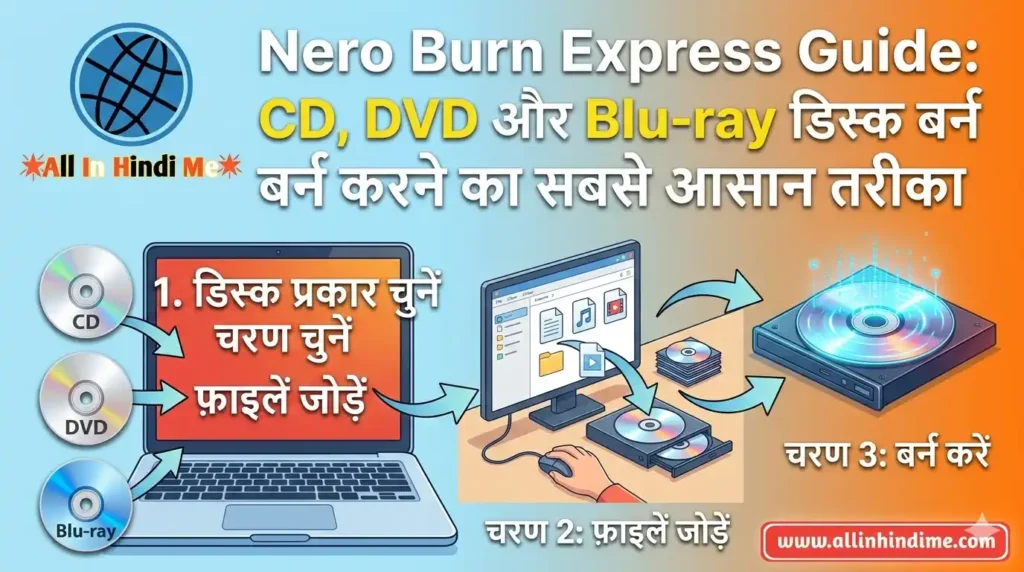
यदि आप पहली बार Nero Express इस्तेमाल कर रहे हैं, तो सामान्य data disc बनाने के लिए यह workflow उपयोगी हो सकता है।
Computer में blank recordable disc डालें।
Nero Express खोलें।
Data Disc या समान विकल्प चुनें।
Add या Drag-and-Drop से files और folders चुनें।
Disc capacity के अनुसार data की मात्रा जांचें।
Disc name या label सेट करें।
Burning speed और अन्य उपलब्ध settings जांचें।
Burn विकल्प पर क्लिक करें।
प्रक्रिया पूरी होने तक disc बाहर न निकालें।
जरूरत हो तो disc verification करें।
Disc को finalise करने से पहले यह समझ लें कि बाद में उसमें अतिरिक्त files जोड़ने की सुविधा बंद हो सकती है।
Nero Burn Express के फायदे और नुकसान
फायदे
Guided interface से disc burning आसान हो सकती है।
CD, DVD और Blu-ray workflows का समर्थन।
Data disc बनाने में उपयोगी।
Supported editions में audio CD creation।
ISO और disc image burning के विकल्प।
Supported audio CD ripping।
सामान्य users के लिए सरल workflow।
Nero ecosystem के दूसरे tools के साथ उपयोग की संभावना।
नुकसान
Optical drive और blank discs की जरूरत।
Modern laptops में external drive खरीदनी पड़ सकती है।
Exact version के अनुसार features बदल सकते हैं।
Advanced settings के लिए Nero Burning ROM बेहतर हो सकता है।
पुराने product versions की compatibility सीमित हो सकती है।
यह cloud backup या full video editing software का विकल्प नहीं है।
Nero Burn Express के साथ कौन-सी Accessories खरीदें?
Disc burning के लिए software के अलावा कुछ hardware accessories भी उपयोगी हो सकती हैं।
1. External DVD Writer
यदि आपके laptop या desktop में optical drive नहीं है, तो external USB DVD writer उपयोगी हो सकता है।
यदि आप disc burning software खरीदना चाहते हैं, तो Nero के साथ दूसरे विकल्प भी देख सकते हैं।
Software
Platform
Best For
Nero Burn Express
Windows
Guided disc burning
Nero Burning ROM
Windows
Advanced disc burning
CDBurnerXP
Windows
Basic data और audio disc burning
ImgBurn
Windows
ISO और image burning workflows
Windows Disc Image Burner
Windows
Supported ISO images को disc पर लिखना
इन alternatives की current compatibility और features अलग-अलग हो सकती हैं। किसी पुराने software को नए Windows version पर install करने से पहले उसकी official compatibility information जांचें।
क्या Nero Burn Express खरीदना चाहिए?
Nero Burn Express उन users के लिए उपयोगी हो सकता है जिन्हें CD, DVD और Blu-ray burning के लिए guided interface चाहिए।
यदि आपका काम सामान्य data discs बनाना, personal files archive करना या supported audio CDs तैयार करना है, तो Nero Express एक practical option हो सकता है।
लेकिन यदि आपको advanced disc compilation, detailed settings और अधिक professional controls चाहिए, तो Nero Burning ROM की तुलना करना बेहतर होगा।
हमारी Recommendation:
सामान्य users के लिए: Nero Express।
Advanced disc burning के लिए: Nero Burning ROM।
केवल ISO file burn करनी है: Windows के built-in विकल्प भी जांचें।
Laptop में optical drive नहीं है: पहले compatible external drive खरीदें।
खरीदने से पहले Nero की official support information और exact product listing जरूर जांचें।
Nero Burn Express एक Windows-based disc burning software है, जिसका उपयोग supported CD, DVD और Blu-ray media पर data और अन्य supported content burn करने के लिए किया जाता है।
Nero की 27 March 2026 की support जानकारी में Microsoft Store वाला DVD, CD and Blu-ray Burner – Nero Express और retail Nero Burn Express 5 का उल्लेख है।
Nero की official website, Microsoft Store listing या trusted retail seller से खरीदने के विकल्प जांचें। License और product version verify करना जरूरी है।
Affiliate Disclosure: इस लेख में Amazon Affiliate Links शामिल हैं। यदि आप इन Links के माध्यम से कोई Product खरीदते हैं, तो AllInHindiMe.com को बिना किसी अतिरिक्त लागत के कमीशन मिल सकता है। इससे हमारी वेबसाइट को सहयोग मिलता है। हम पाठकों को उपयोगी और प्रासंगिक Products की जानकारी देने का प्रयास करते हैं।
-:नोट:-
ऐसे ही सभी जानकारी हम सबसे पहले अपने इस वेबसाइट https://allinhindime.com के माध्यम से देते हैं तो आप हमारे वेबसाइट को फॉलो करना ना भूलें ।
अगर यह आर्टिकल पसंद आया है तो इसे Like और share जरूर करें ।